
Installation
This explains the installation method. This is a Side-Loading installation, not from MS AppSource. There are two main methods:
- Install in Web Browser version of Excel
- Install in Desktop App version of Excel
For Web Browser, Installation
Section titled “For Web Browser, Installation”1) Download Manifest for eeFunction
Section titled “1) Download Manifest for eeFunction”Enter the following command in the Terminal or Command Prompt window, or click the Download button to download ‘manifest_eeFunction.xml’ for Add-in installation.
curl.exe --output C:\manifest/manifest_eeFunction.xml --url https://eefunction.pages.dev/manifest_eeFunction.xml --ssl-no-revoke2) Upload Add-in
Section titled “2) Upload Add-in”Open an Office365-WebExcel file in a web browser (Chrome/MS Edge/Safari).
Shared Folder: O365 OneDrive
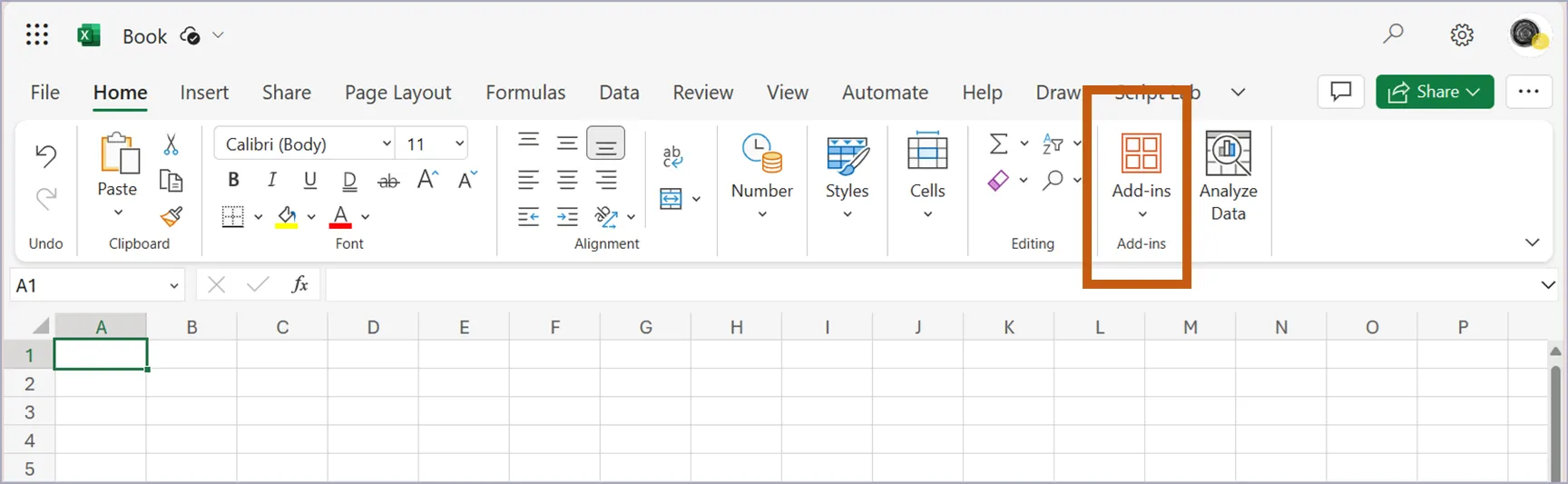
(KOR)
- “추가기능” 메뉴를 선택합니다.
- “내 추가기능 업로드”을 선택합니다.
- 다운받은 파일 -manifest_eeFunction.xml-을 업로드 합니다.
- 엑셀 상단메뉴바에 -eeFunction-이 추가되면 기능을 사용할 수 있습니다.
(ENG)
- Select “Add-ins” in Top ribbon menu
- Select “Upload My Add-in”
- Upload the file -manifest_eeFunction.xml-
- Use custom function if -eeFunction- title shows at excel ribbon MenuBar
For Desktop, Installation
Section titled “For Desktop, Installation”By default, Office Add-ins can be used regardless of Web/Desktop.
Some functions provided by eeFunction are written based on Web Assembly. These work in browsers but do not work on Desktop.
Therefore, we currently do not provide a separate Desktop Module.
Update for Latest Version
Section titled “Update for Latest Version”You can download the latest version to the c:\manifest folder through the cmd file below.
With Manifest Updater, latest manifest.xml will be downloaded at c:\manifest folder.
https://eefunction.pages.dev/manifest_download_eeFunction.cmd
In Chrome/Edge/Safari web-browser, re-upload your manifest.xml file.
In Chrome/Edge/Safari web-browser, re-upload your manifest.xml file.