
Installation
You can easily install through the following links.
Install with Web-Browser
Install with Desktop PC
Other installation methods include:
- Add from MS Marketplace
- Search and add from Excel Add-ins
Using Microsoft Marketplace
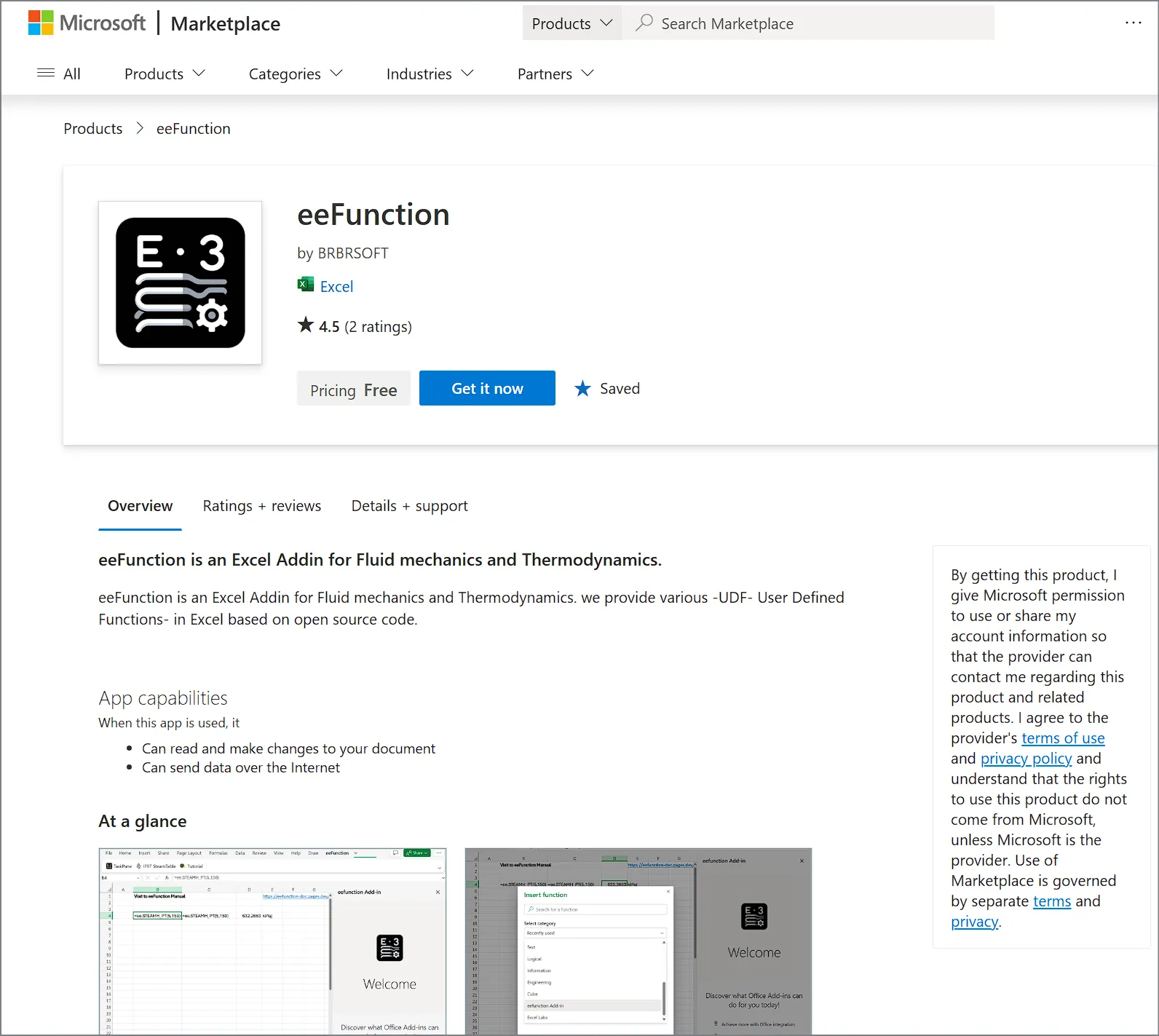
Section titled “Using Microsoft Marketplace”- Go to the MS Marketplace URL address. LINK
- Click the
Get it Nowbutton to add the Office Add-ins. - If you’re not logged in to Office365 (Excel), go through the login process.
- If installed successfully, the
eeFunctionmenu will be created in the top menu.
Using Add-ins Menu in Excel
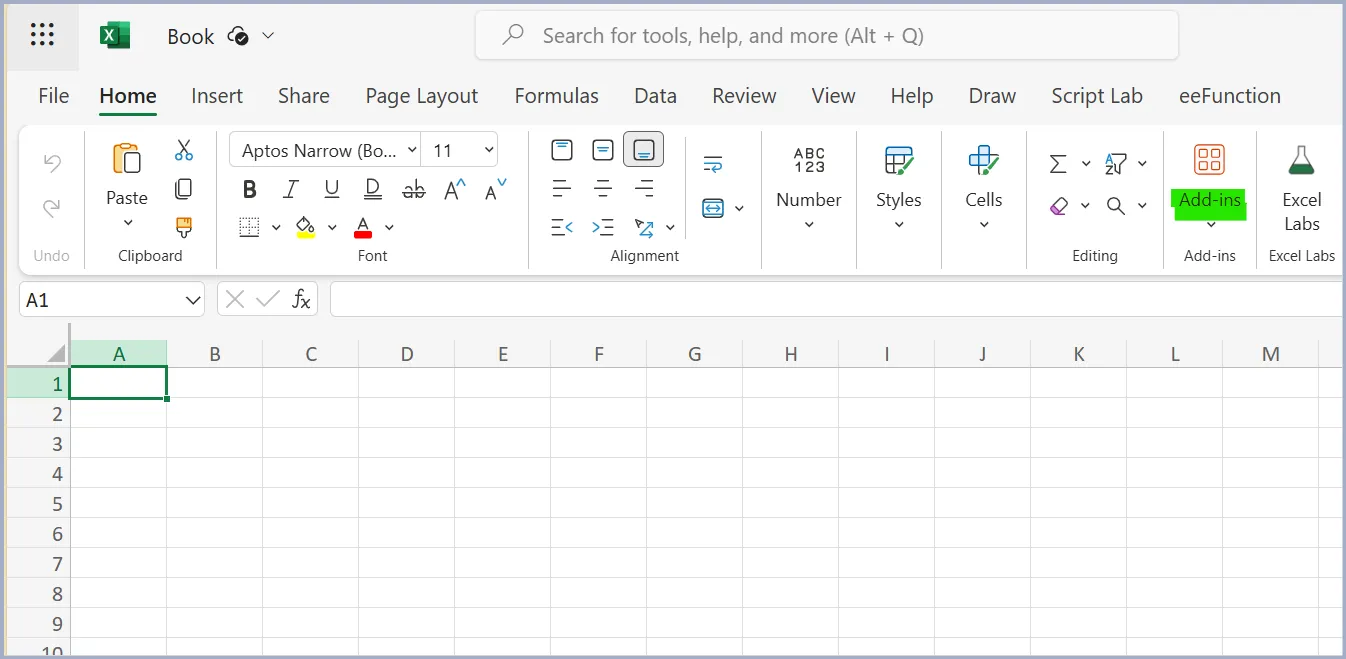
Section titled “Using Add-ins Menu in Excel”- In Excel, select Home > Add-ins menu.
- Search for
eeFunctionin the Office Add-ins search menu.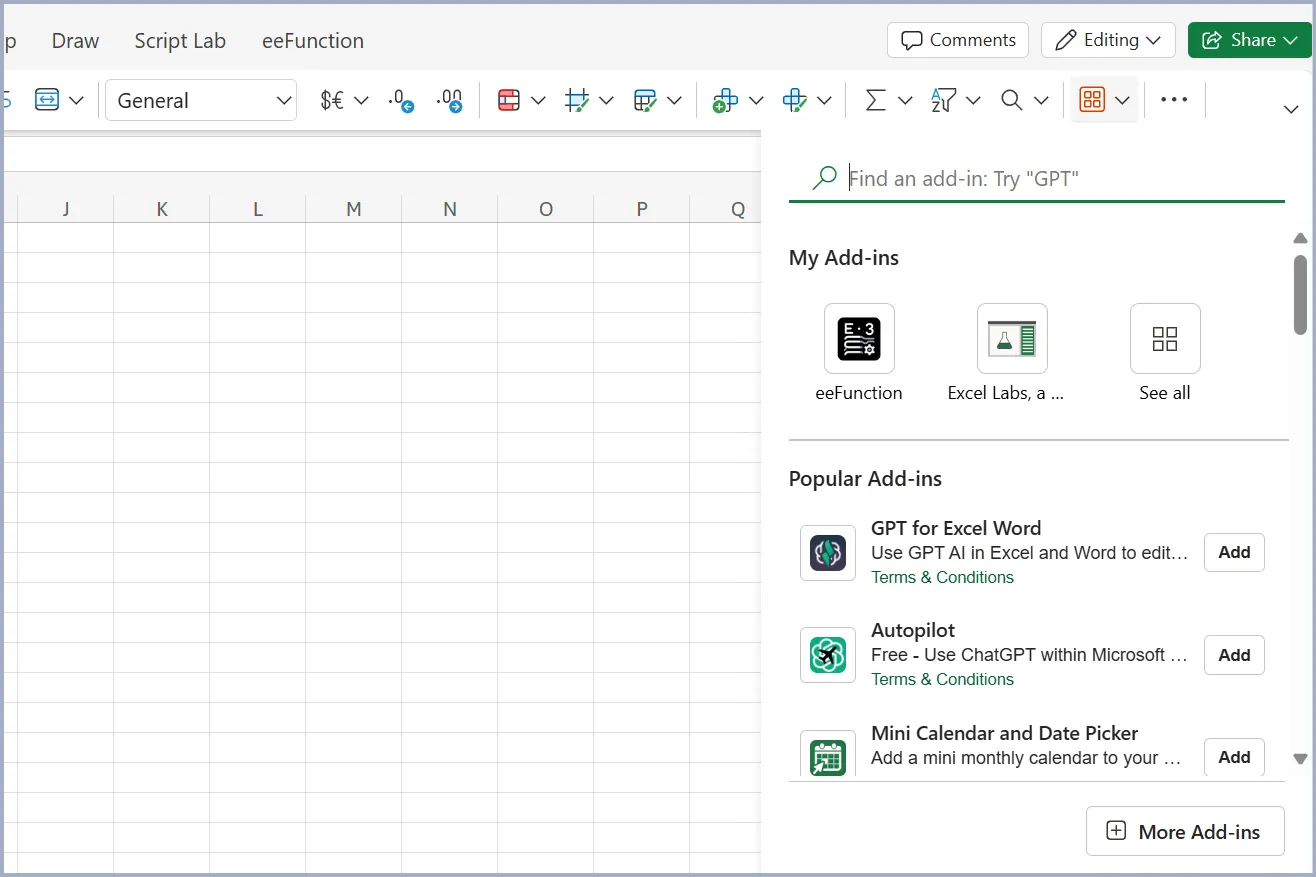
- Install the Add-in that appears in the search by clicking the
Addbutton.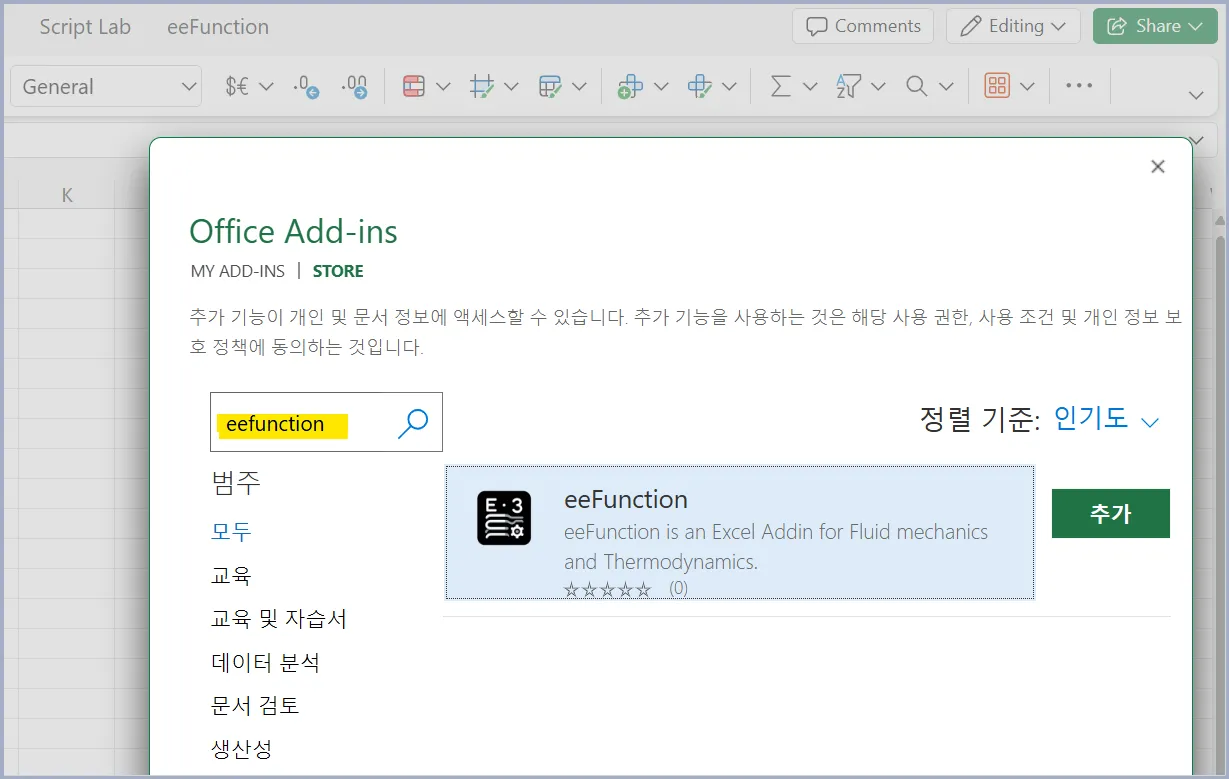
For Desktop App-Excel, Only Some Functions Are Available
Section titled “For Desktop App-Excel, Only Some Functions Are Available”By default, Office Add-ins can be used regardless of Web/Desktop.
Some functions provided by eeFunction are written based on Web Assembly.
This works fine in Web-Excel running in a browser, but does not work in Desktop-Excel.
For example, the CoolProp command =ee.PROPSSI falls into this category.