Intallation
설치하는 방법에 대해서 설명합니다. MS Appsource에서 설치하는 방법이 아닌, Side-Loading방식의 설치입니다. 크게 2가지 방법이 있습니다.
- Web Browser 버전의 엑셀에 설치
- Desktop App 버전의 엑셀에 설치
For Web Browser, installation
섹션 제목: “For Web Browser, installation”1) Download manifest for eeFunction
섹션 제목: “1) Download manifest for eeFunction”터미널Terminal 또는 명령프롬프트CMD 창에서 아래 명령어를 입력하거나 Download 버튼을 눌러 Add-in 설치용 ‘manifest_eeFunction.xml’을 다운받습니다.
curl.exe --output C:\manifest/manifest_eeFunction.xml --url https://eefunction.pages.dev/manifest_eeFunction.xml --ssl-no-revoke2) Upload Add-in
섹션 제목: “2) Upload Add-in”Web브라우저(Chrome/MS Edge/Safari)에서 Office365-WebExcel 파일을 엽니다.
Shared Folder: O365 OneDrive
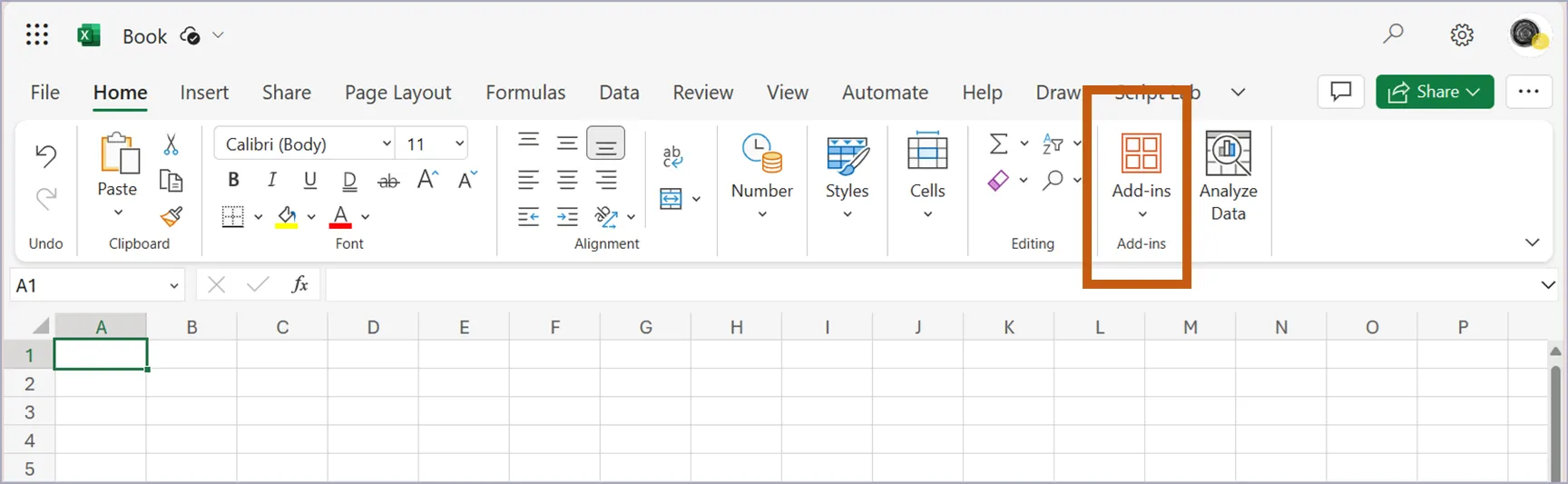
(KOR)
- “추가기능” 메뉴를 선택합니다.
- “내 추가기능 업로드”을 선택합니다.
- 다운받은 파일 -manifest_eeFunction.xml-을 업로드 합니다.
- 엑셀 상단메뉴바에 -eeFunction-이 추가되면 기능을 사용할 수 있습니다.
(ENG)
- Select “Add-ins” in Top ribbon menu
- Select “Upload My Add-in”
- Upload the file -manifest_eeFunction.xml-
- Use custom function if -eeFunction- title shows at excel ribbon MenuBar
For Desktop, installation
섹션 제목: “For Desktop, installation”기본적으로 Office Add-ins은 Web/Desktop 구분없이 사용가능합니다.
eeFunction에서 제공하는 일부 함수는 Web Assembly 기반으로 작성되어 있습니다. 이는 브라우저에서는 동작하지만 Desktop에서는 동작하지 않습니다.
따라서, 현재는 Desktop Module을 별도로 제공하지 않습니다.
Update for Latest version
섹션 제목: “Update for Latest version”아래 cmd 파일을 통해 최신버전을 c:\manifest 폴더에 다운받으실 수 있습니다.
With Manifest Updater, latest manifest.xml will be downloaded at c:\manifest folder.
https://eefunction.pages.dev/manifest_download_eeFunction.cmd
크롬/엣지/사파리 브라우저에서 Add-ins 항목을 다시 업로드하시면 됩니다.
In Chrome/Edge/Safari web-browser, re-upload your manifest.xml file.